Showing posts with label Tutorial. Show all posts

Sunday, April 17, 2011

Tutorial 4: What is RAID?? Seriously...

That's how I felt when I first started learning about them. Turns out, they're not as bad as they seem at first. RAID stands for "Redundant Array of Inexpensive Drives". This is basically a way of  combining the storage across multiple drives to offer a single virtual device. RAID can provide the following benefits: Data redundancy (protects important data from failures), Fault Tolerance (provides a more reliable system), Increased Capacity (combines several disks together into one), Increased Performance (subjective to the type of RAID is used, overall the technology is the better option). These are the main types of RAID...

RAID 0: Also known as "Striping", the read/write operations are executed from the various drives simultaneously. Meaning, your data is split among different disks for storage. The total amount of storage available for use is the sum of all disk's memory. This translates into faster writing/reading times because of the simple fact that it can execute from several disks at once, as supposed to one for a big file. RAID 0, is the fastest and most efficient type of RAID. However, it does not offer any fault tolerance, simply because there is no extra disk where you may backup your data. This is a great choice for someone that backs up their data on an external hard drive often. Below we have RAID 0, striping.

Credit to: www.Iomega.com tutorial team.


RAID 1: Also called, Mirroring, is a two disk system that allows redundancy. The structure offers redundancy (as supposed to RAID 0) because, the data is written fully on BOTH disks. This is great for environments where, cost is not an issue but data loss is a big concern. Although, cost is 50% higher than Striping (you need double GB to store your data, twice), it's great when handling critical data. You may also add what is called a "Hot Spare" disk which, is an extra disk that is only used when one of the others (with data) fails. In the case of said disk failure, "Hot Spare" disk copies all the data from the "good" disk to create a second copy. When the failed disk is exchanged, it becomes the new "Hot Spare". Here is what RAID 1 looks like...
Credit to: www.Iomega.com tutorial team.
RAID 5: Is a redundant system, which is similar to striping but distributes parity among the drives. RAID 5 requires three or more drives as it spreads data blocks across all disks except for one, "Hot Spare". This system has relatively fast reads similar to striping. however, due to having to compute parity, writing times are a bit slower than previous RAID. In addition to fast read times, this provides data redundancy. If a single disk fails, due to parity, "how spare" can easily reconstruct the data lost. Here is what it may look like..
Credit to: www.Iomega.Com Tutorial Team
So now you have the main idea of what RAID is what their advantages are. If you're in the market for a RAID system, I would advice you to do extensive research on which is more appropriate to your environment. Here are some websites I find useful: Addonics RAID quick tutorial & Publib Boulder's RAID Journal.


Sunday, March 27, 2011

Tutorial 3: Microsoft Access queries and a look at their criteria!

So, I was working on an Access project for my class and I realized how much you can utilize a well developed database. As part of my assignment I had to create a query that required a special "criteria" equation that returns records less than 180 days (6 months) old. I got to thinking, what are the other criteria equations that I could use to enhance my database. My project setting was that of a gym, and I was manipulating raw data of current and former members. Whatever the situation that you're utilizing Access for, the criteria needed for the desired return might be similar. Here is a quick look at one criteria equation that I would like to use to enhance my database.

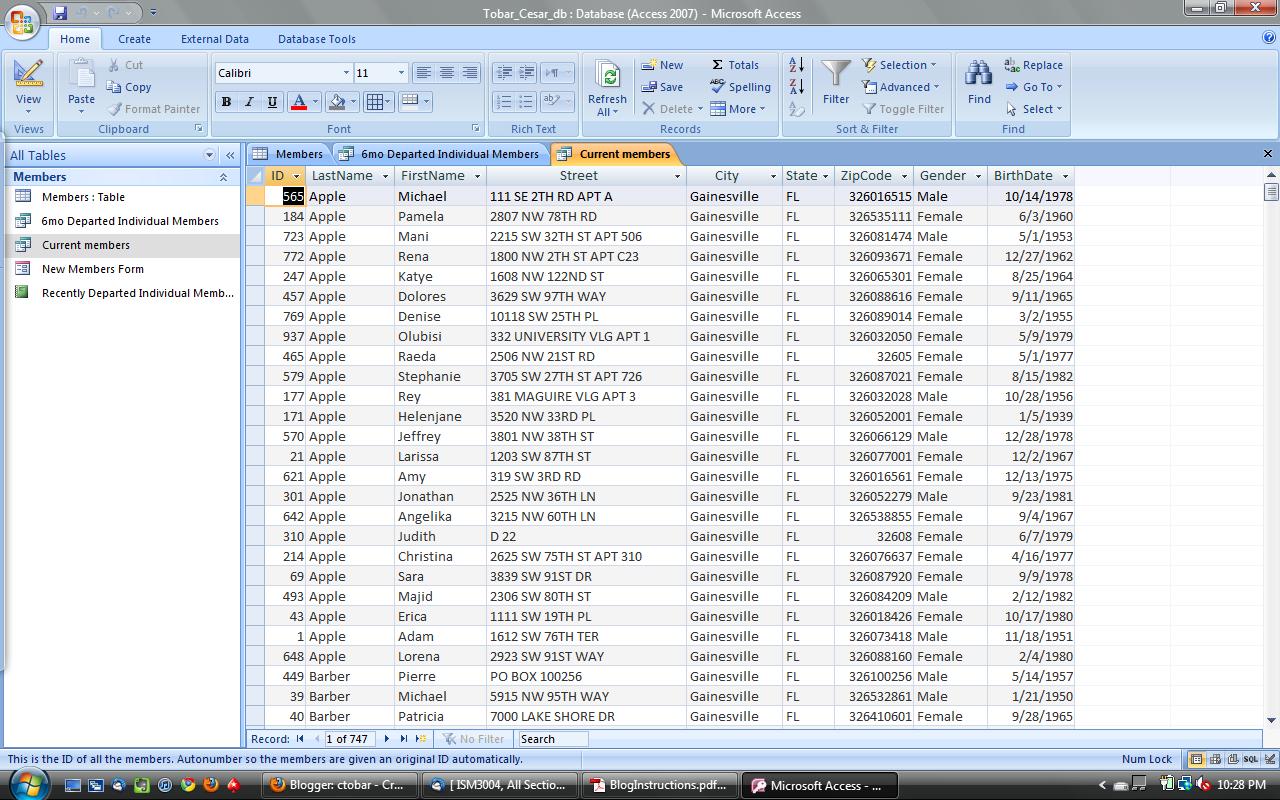
The first Query I wish to create would be: A list of current members that includes basic info (ID, name, address, birth date, type of membership).  This list could be used as a marketing tool. We can use this list to send promotions to current members on their birthdays and/or promotions based on their type of membership (Individual or family membership). My only issue is that the "Leftdate" field ( If left "blank", member is a current patron). What criteria could I use have my query return all records with blank "Leftdate" fields. Here is a closer look.

  
Screen Cap Taken By: Cesar Tobar 

First we'll start with our query in "Design View". As you can tell I already added all the fields I want it to return. The red circle indicates the field that I want to return with only "blank" records.


Screen Cap Taken By: Cesar Tobar
As you can see the required criteria "equation" for the desired return is simple. "Is Null" does the job for this desired return. As you can see I also sorted our query by Last Name. You might want to sort it by ascending "Birth Date" so it's easier for the marketing department to send promotions as the time passes. You can also see that unchecked the "show" box for "Left Date" field, so  your return does not show a black column.

Screen Cap Taken By: Cesar Tobar
The finished product looks like this. As you can see a simple query could be turn into a report, which could be used as a great tool to generate more business. There is a TON on criteria equations that may be used to return a desired information. This page gives you a very extensive list of criteria and sort equations that may be used along with a simple explanation. Thanks for reading and stay tuned for the next post!

Sunday, February 20, 2011

Tutorial 2: How to swap First & Last names in excel

So, I work on campus in a very important office and I see a TON on important names, dollar amounts, ranges of dollar amounts, etc. Me, the "student assistant", sometimes have to format excel sheets with a hundreds of raw data entries into easier to read sheets. In my office, people swap files like kids swap germs in 1st grade. Therefore, there are plenty of versions of each file with different formats and inconsistencies. Some of the problems I run through often (in sheets with enough entries to NOT do it by hand)and taught myself how to fix are the following: Swap "First, Last" to "Last, First" and Switch caps "Last, First" to "LAST, FIRST". Since the quick functions on "excel help" are known to cause problems for these issues. Here is a short tutorial on how to switch "Last name, First name" into "First name, Last name".

You will be using this function "=Mid(A2&" "&A2,Find(" ",A2)+1,Len(A2)-1)". Basically, what it does is find the " " (space) in the selected cell and switch the text of before and after the " " (space) in the cells selected. Let's say you start of like this...
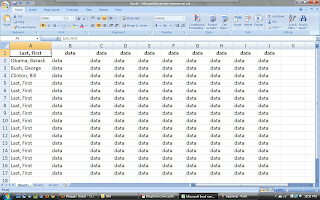
Photo taken by: Tobar, Cesar.


You want to make space by adding two columns between "A" & "B". Such as...
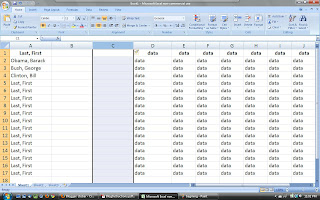
Photo taken by: Tobar, Cesar.


Paste this formula in B1 "=Mid(A2&" "&A2,Find(" ",A2)+1,Len(A2)-1)". Then drag all the way to the bottom using the "+" symbol at the bottom of "B1". Note, if you DO NOT have headings as I do, you will be switching the "A2" into "A1".
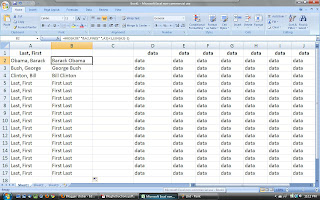
Picture Taken by: Tobar, Cesar.


Next, You may think that you're done and you can use (copy/paste) our new column for new sheets. Column "B" is currently just formulas that output the text displayed. You must selected the "output" in column "B", copy and "paste special" "values only" in column "C" like this...
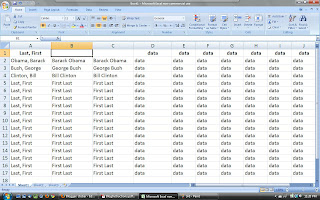
Photo Taken By: Tobar, Cesar.


Now you just delete column "B" and you may use the text for your editing pleasure. Then, you're done! Feel free to blog about your own quick solutions to everyday excel struggles to help others. If you get stuck, be sure to use the "Excel help" for a quick and painless fix. Have a great day, see you next blog.