I have been using Skype for quite sometime now, not knowingly that this is the Voice Over IP technology. As I just learned that Voice Over IP may come in many forms. The most popular is Skype, which allows you to make free phone calls and video conference (2 or more users) with just an internet connection. Like I mentioned before, I've used it since it was first released. I am now able to keep in touch with family and friends that I can't see very often. Attached is a video call with a friend of mine...
Screen Cast Skype_Call
Sunday, April 3, 2011

Extra Credit: Creating an Avatar
To start off, I want to show you my avatar. I created it using the "Create Avatar-South Park Studios". I chose this website because it allows you to download the avatar in form of a background. As supposed to other choices, they email it to you which can take up to 30 minutes. I tried "Face Your Manga" twice and the avatar never came in my inbox. I also just enjoy South Park to begin with. So, here it is..
I started off by using Google, the link to the website is: www.southparkstudios.com/avatar. The first step is, choose whether you want to; Create new avatar, Randomize a character, or view gallery. I chose create new avatar. The menu looks like this...
As you can see in the picture, this is the navigation menu. The blue circle, represents the navigation menu (to jump sections) as well as an undo button. The red circles, are used to go to the next section once you have decided on a particular item on the present section. Yellow circles are also navigation arrows that allow you to scroll from one item to the next (skin colors). Finally, the green circle, has a save button, share button (allows to share on Facebook and other media) as well as a random button if you are indecisive.
That does it for my avatar post. I had fun creating my avatar, it was quick and easy. I advice you, when you're bored, to get on a search engine and look for some web-flash based avatar creators and have some fun!
 |
| Created by: Cesar Tobar; Used "Create Avatar-South Park Studios. |
I started off by using Google, the link to the website is: www.southparkstudios.com/avatar. The first step is, choose whether you want to; Create new avatar, Randomize a character, or view gallery. I chose create new avatar. The menu looks like this...
 |
| Created by: Cesar Tobar; Used "Create Avatar-South Park Studios. |
As you can see in the picture, this is the navigation menu. The blue circle, represents the navigation menu (to jump sections) as well as an undo button. The red circles, are used to go to the next section once you have decided on a particular item on the present section. Yellow circles are also navigation arrows that allow you to scroll from one item to the next (skin colors). Finally, the green circle, has a save button, share button (allows to share on Facebook and other media) as well as a random button if you are indecisive.
That does it for my avatar post. I had fun creating my avatar, it was quick and easy. I advice you, when you're bored, to get on a search engine and look for some web-flash based avatar creators and have some fun!
Sunday, March 27, 2011
Tutorial 3: Microsoft Access queries and a look at their criteria!
So, I was working on an Access project for my class and I realized how much you can utilize a well developed database. As part of my assignment I had to create a query that required a special "criteria" equation that returns records less than 180 days (6 months) old. I got to thinking, what are the other criteria equations that I could use to enhance my database. My project setting was that of a gym, and I was manipulating raw data of current and former members. Whatever the situation that you're utilizing Access for, the criteria needed for the desired return might be similar. Here is a quick look at one criteria equation that I would like to use to enhance my database.
The first Query I wish to create would be: A list of current members that includes basic info (ID, name, address, birth date, type of membership). This list could be used as a marketing tool. We can use this list to send promotions to current members on their birthdays and/or promotions based on their type of membership (Individual or family membership). My only issue is that the "Leftdate" field ( If left "blank", member is a current patron). What criteria could I use have my query return all records with blank "Leftdate" fields. Here is a closer look.
First we'll start with our query in "Design View". As you can tell I already added all the fields I want it to return. The red circle indicates the field that I want to return with only "blank" records.
As you can see the required criteria "equation" for the desired return is simple. "Is Null" does the job for this desired return. As you can see I also sorted our query by Last Name. You might want to sort it by ascending "Birth Date" so it's easier for the marketing department to send promotions as the time passes. You can also see that unchecked the "show" box for "Left Date" field, so your return does not show a black column.
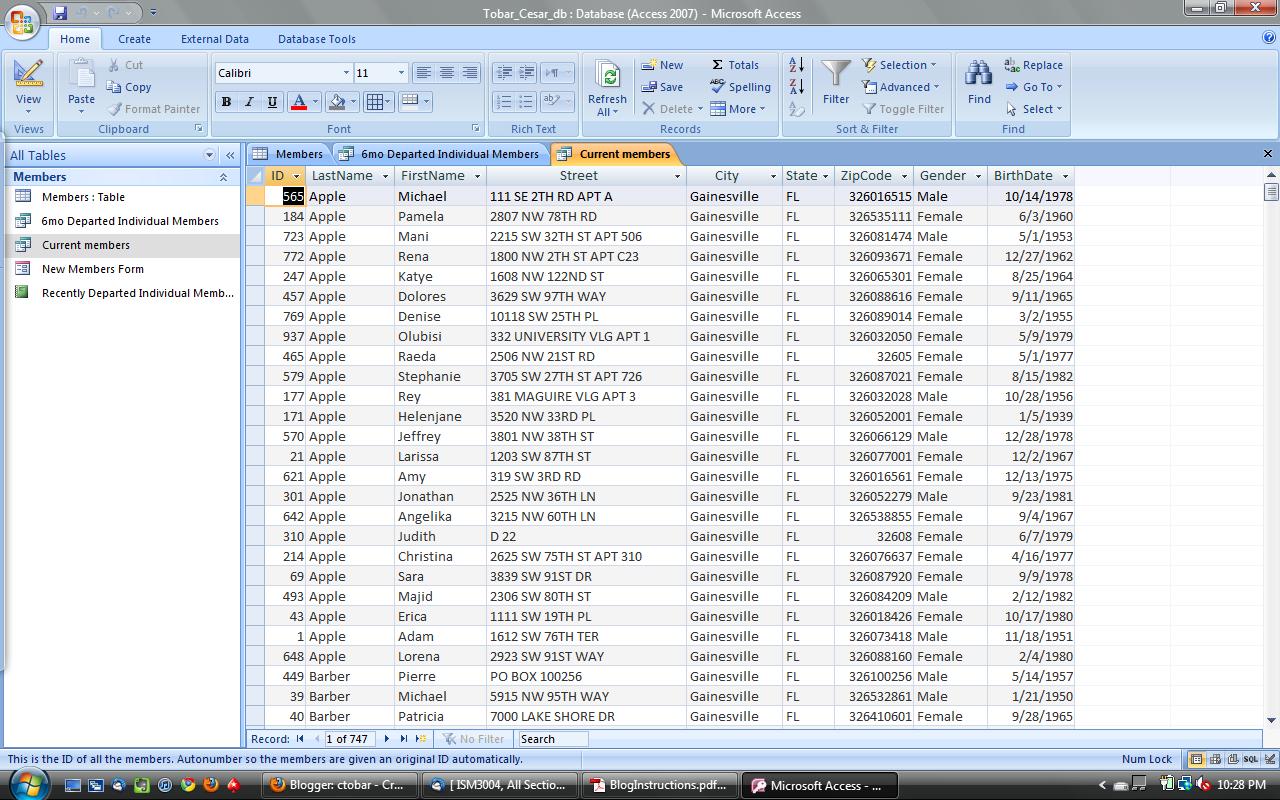
The finished product looks like this. As you can see a simple query could be turn into a report, which could be used as a great tool to generate more business. There is a TON on criteria equations that may be used to return a desired information. This page gives you a very extensive list of criteria and sort equations that may be used along with a simple explanation. Thanks for reading and stay tuned for the next post!
The first Query I wish to create would be: A list of current members that includes basic info (ID, name, address, birth date, type of membership). This list could be used as a marketing tool. We can use this list to send promotions to current members on their birthdays and/or promotions based on their type of membership (Individual or family membership). My only issue is that the "Leftdate" field ( If left "blank", member is a current patron). What criteria could I use have my query return all records with blank "Leftdate" fields. Here is a closer look.
 | |||
| Screen Cap Taken By: Cesar Tobar |
 |
| Screen Cap Taken By: Cesar Tobar |
 |
| Screen Cap Taken By: Cesar Tobar |
Database Project
I had attempted to use Microsoft Access last year for a project, it was difficult. I could not understand all the different views, structures of queries, forms and reports. Learning about Microsoft Access in this class is definitely something I was looking forward to because this is the one program that I could not figure out on my own. After finishing this project I learned many things: How the program is structured (different views & how to import data), how to create queries, forms reports and how to create reports from a certain source.
One way to improve this database could be: Create a table called "Current Members". We would know who our current clients are so we can send gifts and promotions on special dates (i.e. birthdays). We could have the same table as "6mo" except to change "Left Date" criteria and have the table return members with no "left date". Another way would be, create a table of all current, individual memberships so the gym can send "family deals" so the whole family can sign up.
One way to improve this database could be: Create a table called "Current Members". We would know who our current clients are so we can send gifts and promotions on special dates (i.e. birthdays). We could have the same table as "6mo" except to change "Left Date" criteria and have the table return members with no "left date". Another way would be, create a table of all current, individual memberships so the gym can send "family deals" so the whole family can sign up.
Sunday, February 27, 2011
Presentation and Web 2.0 Project
For the Presentation and Web 2.0 Project, I decided to present about The Delta Chi Philanthropy (Earthball) and how we support the Jimmy V. Foundation and it's cause. My presentation can be found on you tube here. Overall, I believe my presentation followed all the instructions very well. I made a very conscious effort to meet all the requirements that the evaluation rubric set.
I started off with a very emotional excerpt from Jimmy V's famous ESPY speech in 1993. I believe I grabbed the audience's attention right away. The presentation was given in logical flow. I introduced four main points: Who is Jimmy Valvano?, What is the Jimmy V. Foundation?, What is Earthball and how it's played? and lastly, How you can get involved. My slides were tastefully done, I had big enough text with enough information, large pictures and plenty of white space as to not have too much noise.
I do believe I missed one part of the requirements. I did not add a SLIDE with cited works on my Powerpoint slide. However, I did cite ALL of my media in the "details" section of my presentation's page on YouTube. I also resubmitted my source file to reflect written consent to use Jimmy V. Foundation's logo and Jimmy V's picture. I strongly believe NO copyright laws were infringed upon.
Critiquing a peer's presentation gave me great insight as to what I had to do to make my presentation perfect. It is a combination of: Natural and error free speech, a slideshow with the right layout and notice-to-signal ratio along with the right media to grab your audience's attention.
Overall, I not only learned a lot more about my topic which I presented on but I learned the effort it takes to put technology together for a presentation. It is truly getting to work anywhere from 3-10 programs in harmony to have ONE final file to upload to the internet. I, of course, made things very complicated and tried around 6 programs until I found the ones that were useful to me the most. My final programs were: Powerpoint, YouTube Dowloader, Boilsoft Video Splitter, Easy Video Splitter (to switch to WMV format), snagit and of course Youtube.com. Once again, I learned a lot more than I expected for this project and I am glad I put as much effort as I did. I will absolutely be using all this new found knowledge on web 2.0 technology in the future, as I join the workforce.
Note: Instructions said this project was easy, I do not agree. Researching programs to fit your needs can become a hassle and I have a new found respect for amateur video and audio editors that work with little resources.
HAVE A GREAT NIGHT!!!!!
CT
I started off with a very emotional excerpt from Jimmy V's famous ESPY speech in 1993. I believe I grabbed the audience's attention right away. The presentation was given in logical flow. I introduced four main points: Who is Jimmy Valvano?, What is the Jimmy V. Foundation?, What is Earthball and how it's played? and lastly, How you can get involved. My slides were tastefully done, I had big enough text with enough information, large pictures and plenty of white space as to not have too much noise.
I do believe I missed one part of the requirements. I did not add a SLIDE with cited works on my Powerpoint slide. However, I did cite ALL of my media in the "details" section of my presentation's page on YouTube. I also resubmitted my source file to reflect written consent to use Jimmy V. Foundation's logo and Jimmy V's picture. I strongly believe NO copyright laws were infringed upon.
Critiquing a peer's presentation gave me great insight as to what I had to do to make my presentation perfect. It is a combination of: Natural and error free speech, a slideshow with the right layout and notice-to-signal ratio along with the right media to grab your audience's attention.
Overall, I not only learned a lot more about my topic which I presented on but I learned the effort it takes to put technology together for a presentation. It is truly getting to work anywhere from 3-10 programs in harmony to have ONE final file to upload to the internet. I, of course, made things very complicated and tried around 6 programs until I found the ones that were useful to me the most. My final programs were: Powerpoint, YouTube Dowloader, Boilsoft Video Splitter, Easy Video Splitter (to switch to WMV format), snagit and of course Youtube.com. Once again, I learned a lot more than I expected for this project and I am glad I put as much effort as I did. I will absolutely be using all this new found knowledge on web 2.0 technology in the future, as I join the workforce.
Note: Instructions said this project was easy, I do not agree. Researching programs to fit your needs can become a hassle and I have a new found respect for amateur video and audio editors that work with little resources.
HAVE A GREAT NIGHT!!!!!
CT
Sunday, February 20, 2011
Tutorial 2: How to swap First & Last names in excel
So, I work on campus in a very important office and I see a TON on important names, dollar amounts, ranges of dollar amounts, etc. Me, the "student assistant", sometimes have to format excel sheets with a hundreds of raw data entries into easier to read sheets. In my office, people swap files like kids swap germs in 1st grade. Therefore, there are plenty of versions of each file with different formats and inconsistencies. Some of the problems I run through often (in sheets with enough entries to NOT do it by hand)and taught myself how to fix are the following: Swap "First, Last" to "Last, First" and Switch caps "Last, First" to "LAST, FIRST". Since the quick functions on "excel help" are known to cause problems for these issues. Here is a short tutorial on how to switch "Last name, First name" into "First name, Last name".
You will be using this function "=Mid(A2&" "&A2,Find(" ",A2)+1,Len(A2)-1)". Basically, what it does is find the " " (space) in the selected cell and switch the text of before and after the " " (space) in the cells selected. Let's say you start of like this...
You want to make space by adding two columns between "A" & "B". Such as...
Paste this formula in B1 "=Mid(A2&" "&A2,Find(" ",A2)+1,Len(A2)-1)". Then drag all the way to the bottom using the "+" symbol at the bottom of "B1". Note, if you DO NOT have headings as I do, you will be switching the "A2" into "A1".
Next, You may think that you're done and you can use (copy/paste) our new column for new sheets. Column "B" is currently just formulas that output the text displayed. You must selected the "output" in column "B", copy and "paste special" "values only" in column "C" like this...
Now you just delete column "B" and you may use the text for your editing pleasure. Then, you're done! Feel free to blog about your own quick solutions to everyday excel struggles to help others. If you get stuck, be sure to use the "Excel help" for a quick and painless fix. Have a great day, see you next blog.
You will be using this function "=Mid(A2&" "&A2,Find(" ",A2)+1,Len(A2)-1)". Basically, what it does is find the " " (space) in the selected cell and switch the text of before and after the " " (space) in the cells selected. Let's say you start of like this...
 |
| Photo taken by: Tobar, Cesar. |

You want to make space by adding two columns between "A" & "B". Such as...
 |
| Photo taken by: Tobar, Cesar. |
Paste this formula in B1 "=Mid(A2&" "&A2,Find(" ",A2)+1,Len(A2)-1)". Then drag all the way to the bottom using the "+" symbol at the bottom of "B1". Note, if you DO NOT have headings as I do, you will be switching the "A2" into "A1".
 | |||
| Picture Taken by: Tobar, Cesar. |
Next, You may think that you're done and you can use (copy/paste) our new column for new sheets. Column "B" is currently just formulas that output the text displayed. You must selected the "output" in column "B", copy and "paste special" "values only" in column "C" like this...
 |
| Photo Taken By: Tobar, Cesar. |
Now you just delete column "B" and you may use the text for your editing pleasure. Then, you're done! Feel free to blog about your own quick solutions to everyday excel struggles to help others. If you get stuck, be sure to use the "Excel help" for a quick and painless fix. Have a great day, see you next blog.
Sunday, February 13, 2011
Excel Project
This Excel Project was a lot easier than I thought it would be. I use Excel at work often and handle spreadsheets with thousands of entries and a tons of data. This project was very realistic and could very well be a report that I would have someone make if I owned/managed a gym. The breakdown of all the data was very specific, precise and easy to work with. It was very useful to learn all the new functions that I've needed in the past but was too pressed for time to look up. Now, my excel skills are that much proficient.
Regarding pivot tables: The first one was very easy to comprehend what the results should be. However, the second, gave me quite the problem. I had to sit back and analyze what it was that the "manager" wanted so I could display the right percentage. At one point, I was displaying 8000%? which, after doing a little digging in the discussion board come to find out that it's "insane". Once I figured out that the percentage is a "sum" for the age groups broken down in gender...it was all smooth sailing. I enjoyed this excel project very much and hope the coming ones will be as useful.
 |
| Taken by: Tobar, Cesar. "AvgIncrease." |
Subscribe to:
Posts (Atom)